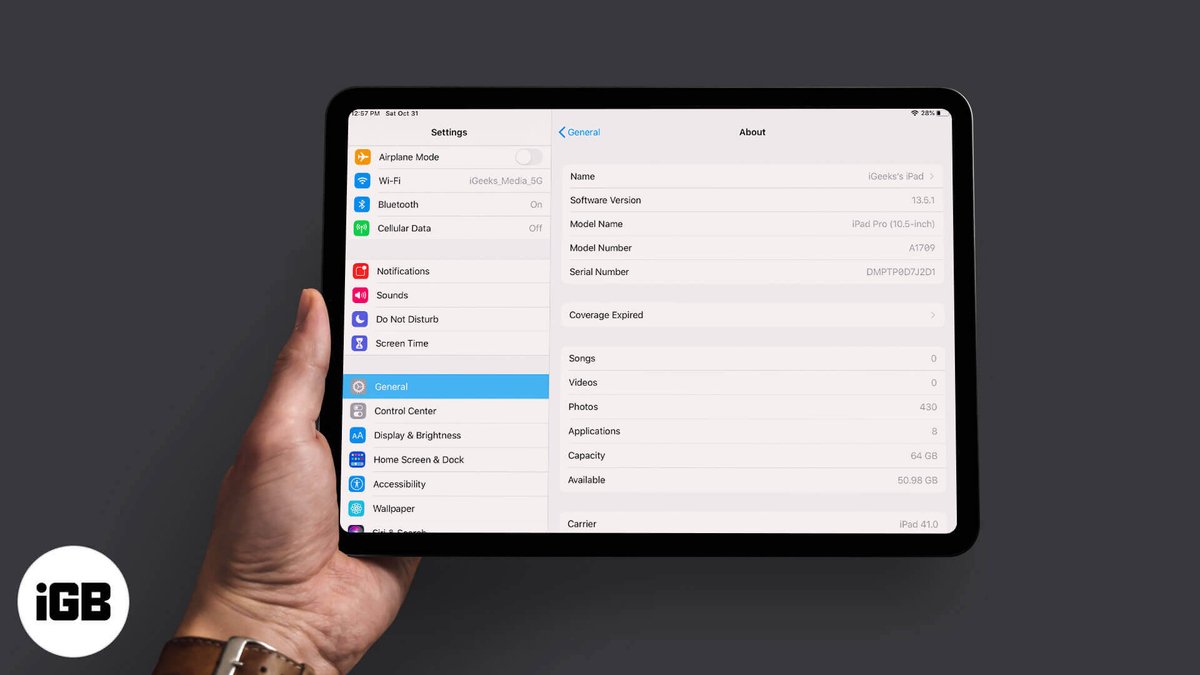
Ever found yourself staring at your iPad, wondering exactly which model it is? Perhaps you're trying to snag the right case, troubleshoot a glitch, or prepare it for a sale or upgrade. Pinpointing your iPad's generation is more than just trivia; it's the key to understanding its capabilities, compatible accessories, and potential software limitations. The most reliable way to unlock this crucial information is by Identifying iPad Generation via Model Number on Device. Forget guessing games or relying on outdated visual cues—your iPad holds its unique identity in a precise code, ready for you to discover.
At a Glance: How to Pinpoint Your iPad Model
- Look for the "A" Number: Your iPad's unique model number starts with an "A" followed by four digits (e.g., A1234). This is the golden ticket.
- Settings App is Your Friend: The quickest way to find it is in
Settings > General > About. Tap the "Model Number" field to reveal the "A" number. - Flip It Over: If your iPad won't power on, check the tiny print on its back, usually below the Apple logo.
- Search and Match: Once you have the "A" number, a simple online search or a quick scan of Apple's support pages will tell you your iPad's exact generation.
- Verify with Features: Cross-reference the identified model's known physical characteristics (like Home Button, camera type, or charging port) with your device for absolute certainty.
Why Bother? The Power of Knowing Your iPad's DNA
Think of your iPad's model number as its unique genetic code. It's the definitive identifier that tells you its exact generation, differentiating it from visually similar siblings. Without this specific number, you might inadvertently buy the wrong charging cable, a case that doesn't quite fit, or struggle to find relevant troubleshooting advice. Knowing your model number is empowering—it saves you time, money, and frustration. It's essential for:
- Accessory Compatibility: From Apple Pencils to keyboards and smart covers, accessories are often generation-specific. A Model A1893 (6th-gen iPad) uses a 1st-gen Apple Pencil, while a Model A2270 (8th-gen iPad) does too, but a Model A2377 (M1 iPad Pro 11-inch) requires a 2nd-gen Pencil.
- Troubleshooting & Support: When calling Apple Support or searching for solutions online, providing the exact model number ensures you get precise, relevant help.
- Software Updates: Understanding your iPad's generation helps you predict its future software update eligibility, informing decisions about upgrades. Older models eventually stop receiving the latest iOS versions.
- Resale Value: Clearly stating the exact generation and model when selling your iPad builds trust and helps potential buyers quickly verify its specifications and market value.
- Insurance & Repairs: Accurate identification is crucial for insurance claims or when seeking repairs, ensuring the right parts and services are quoted.
In short, whether you're a tech novice or a seasoned user, understanding how to Find your iPads generation is a fundamental skill for any iPad owner.
Method 1: The Digital Detective – Finding Your Model Number in Settings
This is usually the quickest and most straightforward way to unearth your iPad's identity, especially if your device is functional and charged. It's like checking an ID card that's stored right inside your device.
Step-by-Step: Navigating the Settings App
- Open the Settings App: Look for the gray gear icon on your Home screen. Tap it to open your iPad's central control panel.
- Navigate to "General": In the left-hand sidebar (or top-level menu on older iOS versions), scroll down and tap on "General." This section is home to core device information and settings.
- Tap "About": Within the "General" menu, "About" is typically the first option. This is where your iPad keeps a summary of its vital statistics.
- Locate "Model Number": Once in the "About" screen, you'll see a list of items like "Name," "Software Version," and "Model Number." Pay close attention to the "Model Number" entry.
- Reveal the "A" Number: Here's the critical trick many users miss: the initial model number displayed might look something like "MY3K2LL/A" or "MR7F2LL/A." This is often a part number, not the universal "A" model number you need. Tap directly on this "Model Number" field. It will instantly transform to reveal the true, unique model number starting with "A" followed by four digits (e.g., A1234).
- Quick Clarification: Why the two numbers? The initial number (like "MY3K2LL/A") is an Apple part number, which can sometimes vary slightly for regional versions of the exact same iPad model. The "A" number (e.g., A1893) is the fundamental, universal model identifier that dictates the generation and core hardware. Always use the "A" number for identification.
Once you have that "A" number, jot it down. You're halfway to solving the mystery of your iPad's lineage.
Method 2: The Physical Proof – Spotting the 'A' Number on Your Device's Back
What if your iPad isn't cooperating? Maybe it won't power on, the screen is shattered, or you simply prefer a tangible method. Fear not, your iPad still proudly displays its identity, albeit in miniature, on its physical shell.
Step-by-Step: Inspecting the Rear Casing
- Turn Your iPad Over: Gently flip your iPad so you're looking at its back.
- Locate the Fine Print: Below the iconic Apple logo, you'll find several lines of tiny, laser-etched text. This is where you'll discover the model information.
- Find "Model A####": Scan these lines of text. You're looking for the word "Model" followed by a colon and then a capital "A" immediately preceding four digits (e.g., "Model: A1234").
- Pro Tip for Tiny Text: This text can be incredibly small, especially if your eyesight isn't perfect or the lighting is poor. A magnifying glass, your phone camera's zoom function, or even just good overhead lighting can make this task much easier. Don't strain your eyes!
This method is particularly valuable for iPads that are unresponsive or have inaccessible screens. It's the most robust way to find the "A" number, ensuring you can identify even a non-functional device. Write down that "A" number once you've found it.
Deciphering the Code: Turning Your 'A' Number into an iPad Generation
Now that you've got your "A" number (like A1234), it's time to translate that code into a clear iPad generation. This is where external resources come into play, acting as your personal iPad almanac.
Using Your "A" Number for Identification
- Head Online: The internet is your best tool here.
- Apple's Official Support Pages: The most authoritative source is Apple's own support website. Search for "Identify your iPad model" or "iPad models" on support.apple.com. They provide comprehensive lists, often with images, that match "A" numbers to specific iPad generations across all lines (iPad, iPad mini, iPad Air, iPad Pro).
- Reputable Tech Sites: Many well-known tech publications and gadget databases maintain up-to-date lists that cross-reference "A" numbers with iPad models. A quick search for "iPad model A1234 generation" will usually yield accurate results from these trusted sources.
- Utilize Search Functions: Once you're on a page with a comprehensive list of iPad models, don't scroll endlessly. Use your browser's "Find" function:
- Mac: Press
Command + F - Windows/PC: Press
Ctrl + F - A small search bar will appear, usually at the top or bottom of your browser window. Type in your "A" number (e.g., A1234) and hit Enter. The page will highlight and jump directly to your matching model.
A Glimpse at How Model Numbers Map to Generations (Illustrative Example)
While a full table is too extensive for this guide, here's a taste of how the "A" numbers work:
| Model Number | iPad Family | Generation | Key Feature Example |
|---|---|---|---|
| A1395 | iPad | iPad 2 | First iPad with two cameras |
| A1538 | iPad mini | iPad mini 4 | Thinner design, Touch ID (1st gen) |
| A1474 | iPad Air | iPad Air (1st gen) | First "Air" branding, thin bezels |
| A1584 | iPad Pro | iPad Pro 12.9-inch (1st gen) | First Pro model, Apple Pencil support |
| A2836 | iPad Pro (M4) | iPad Pro 13-inch (M4) | Latest, thinnest, OLED display |
| As you can see, the "A" number directly corresponds to a specific iPad model and generation. This systematic naming convention is what makes it so powerful and precise. |
Beyond the Number: Verifying Your iPad's Identity Through Features
While the "A" number is the definitive truth, sometimes a quick visual check can help confirm your findings or even provide clues if the number is elusive. Think of it as a secondary layer of authentication.
Key External Characteristics to Look For:
- The Home Button: Does your iPad have a physical, circular button below the screen?
- Yes: It's an older model (up to 9th-gen standard iPad, 5th-gen iPad mini, 3rd-gen iPad Air).
- No (full-screen display): It's a newer model (iPad Pro 2018 or later, iPad Air 4th-gen or later, iPad mini 6th-gen, 10th-gen standard iPad).
- Charging Port Type:
- Lightning Port: Most iPads up to the 9th-gen, older iPad Air, iPad mini, and older iPad Pros.
- USB-C Port: Newer models, including iPad Pro (2018+), iPad Air (4th gen+), iPad mini (6th gen+), and the 10th-gen iPad. This can tell you a lot about its age and compatibility with modern accessories.
- Camera System:
- Single Rear Camera: Most standard iPads, older Air and mini models.
- Dual Rear Cameras (Wide and Ultra Wide) + LiDAR Scanner: Primarily 2020 and later iPad Pro models.
- Screen Size & Bezel Thickness:
- Thick Bezels, Standard Screen Size (9.7-10.2 inches): Older standard iPads.
- Thinner Bezels, Edge-to-Edge Display: Newer Pro, Air, mini, and 10th-gen standard iPad models. Specific screen sizes (e.g., 11-inch vs. 12.9-inch for Pros) also narrow down options.
- Speaker Grilles: The number and placement of speaker grilles can sometimes distinguish between models, especially between Pro and non-Pro versions.
- Apple Pencil Compatibility: Does your iPad magnetically attach and charge an Apple Pencil on its side (2nd generation)? Or does it charge via the Lightning/USB-C port (1st generation)? This is a strong indicator of model year.
Cross-Referencing for Confidence
Once you've identified a likely generation using the "A" number, visit Apple's specifications page for that model. Compare its listed features (screen size, camera setup, button layout, port type, even color options) with your physical device. If everything aligns, you've got a match. This verification step is especially useful if you're dealing with a hand-me-down iPad or one you bought secondhand, ensuring no surprises.
What If You Can't Find the 'A' Number? Other Avenues for Identification
While the "A" number is king, there are rare scenarios where it might be obscured or inaccessible. Don't give up! Your iPad's identity can still be traced.
1. The Original Packaging
If you still have the box your iPad came in, it's a treasure trove of information. The model number (both the "A" number and often the part number like "MY3K2LL/A") will be clearly printed on a sticker, usually next to the barcode and serial number. This is one of the most reliable backup methods.
2. Your iPad's Serial Number
Every single Apple device has a unique serial number. While not as direct as the "A" model number for identifying the generation, the serial number is what Apple's internal systems use to track individual devices.
- Where to Find It:
- In the Settings app:
Settings > General > About(it's listed right there, usually above "Model Number"). - On the back of the iPad: It's typically among the same tiny text where the "A" model number is found.
- On the original packaging.
- On your proof of purchase or receipt.
- How to Use It: If you have the serial number but still can't find the model number, you can:
- Contact Apple Support: Provide them with your serial number, and they can tell you everything about your iPad, including its model and generation.
- Visit Apple's Check Coverage Page: Go to Apple's official "Check Coverage" website (support.apple.com/en-us/repair/check-coverage). Enter your serial number, and while it primarily shows warranty status, it often displays the correct iPad model name.
3. Expert Assistance at an Apple Store
When all else fails, or if you simply prefer professional help, an Apple Store or authorized service provider is your best bet. Bring your iPad (and its serial number if you have it), and a Genius or technician can use their tools and expertise to definitively identify your device. They have access to internal databases that link serial numbers directly to precise models, guaranteeing an accurate identification.
Your iPad, Identified: What to Do Next
Congratulations! You've successfully identified your iPad's generation and model number. But the journey doesn't end there. This newfound knowledge is a valuable asset that can streamline your iPad ownership experience.
Actionable Insights to Maximize Your iPad Experience:
- Record and Store: Write down your iPad's "A" model number and its generation (e.g., "iPad Air 4th Generation, Model A2316") in a safe, accessible place. Consider saving it in a note on your phone, a document on your computer, or even a label on the iPad itself. This saves you the hassle of looking it up repeatedly.
- Screenshot for Quick Access: Take a screenshot of the
Settings > General > Aboutscreen on your iPad. This creates an instant digital record you can easily reference for purchases, support, or selling. - Keep Software Updated: While not directly related to identification, regularly updating your iPad to the latest compatible iOS version ensures you have access to the latest features, security patches, and app compatibility. It also makes navigating the Settings app consistent with current guides.
- Utilize Official Support Pages: Bookmark Apple's "Identify your iPad model" page. It's your definitive resource for future reference, accessory checks, or when helping a friend identify their device.
- Differentiate from Storage: Remember, the model number identifies the type and generation of your iPad, but not its storage capacity. That's a separate detail usually listed on the same
Settings > General > Aboutscreen (e.g., "Capacity: 256 GB"). - Prepare for Upgrades or Sales: Knowing your exact model makes researching trade-in values or setting a fair selling price straightforward. You can confidently list your iPad's specifications, attracting informed buyers.
Frequently Asked Questions About iPad Identification
Q: Why do some model numbers have a slash (e.g., MY3K2LL/A) and others start with "A" (e.g., A1893)?
A: The number with the slash is typically an Apple part number or SKU (Stock Keeping Unit), which can vary slightly by region or carrier, even for the same underlying iPad model. The "A" number (e.g., A1893) is the fundamental, universal hardware model identifier that dictates its generation and core specifications. Always use the "A" number for definitive identification.
Q: Can I identify my iPad by its external appearance alone?
A: While external features (like the presence of a Home Button, camera layout, or port type) can offer strong clues and help narrow down possibilities, relying solely on appearance can be misleading due to similar designs across generations. The "A" model number is the only definitive method.
Q: Does the model number tell me the color or storage capacity of my iPad?
A: No, the "A" model number identifies the generation and type of iPad (e.g., iPad Air 4th Gen), but it doesn't specify its color or storage capacity. These details are listed separately in the Settings > General > About section or on the original packaging.
Q: Is the serial number the same as the model number?
A: No. The model number (the "A" number) identifies the type of iPad (e.g., "iPad Pro 11-inch 3rd Generation"). The serial number is a unique identifier for your specific device, like a VIN for a car. Thousands of iPads can share the same "A" model number, but only one iPad has your specific serial number.
Q: Why is knowing the generation so important for accessories?
A: Apple often updates its designs and technologies between generations. For example, a case designed for an iPad Air 3rd Gen won't fit an iPad Air 4th Gen due to a redesigned chassis. Similarly, different generations support different Apple Pencils (1st Gen vs. 2nd Gen) or Smart Keyboards. Knowing the generation ensures compatibility.
The Final Word: Empowering Your iPad Experience
Identifying your iPad's generation via its model number on the device isn't just a technical exercise; it's an act of empowerment. It puts you in control, whether you're a casual user looking for a new game, a professional needing the right productivity tool, or someone simply trying to keep their device in top shape. By taking a few simple steps, you unlock a wealth of information that ensures you're making informed decisions about your device for years to come. So, go ahead—flip it over or dive into your settings. Discover your iPad's true identity, and elevate your entire Apple experience.